
How to install the 3.3.5a client and log into Azeroth Legacy without errors
Before you start
Azeroth Legacy runs on World of Warcraft version 3.3.5a (build 12340) — the latest patch for Wrath of the Lich King. You need the correct client for that version. Do not try to use another client; different versions do not connect.
The entire process takes less than 30 minutes depending on your connection.
Step 1 — Download the client
There are three download options. Choose the one that works best for you:
Torrent (recommended for stable connections)
Use a torrent client like qBittorrent and open the magnet link below:
magnet:?xt=urn:btih:2ba2833baf733ce0a16040d43ed09491f2bf2ab2&dn=ChromieCraft_3.3.5a.zip
Torrenting is often faster and more reliable for large files. The download is approximately 15 GB.
Google Drive
Good option if torrent doesn't work on your network. Download the complete folder.
MEGA
Direct alternative if Google Drive is slow. Install the MEGA Desktop App for downloads over 5 GB without quota limitations.
Step 2 — Extract the files
After the download finishes:
- Right click on the file
.zip - Choose Extract here (or use 7-Zip / WinRAR)
- Wait for the extraction to complete — don’t cancel halfway through
- You should have a folder called
World of Warcraftor similar with the game files inside
Do not install in folders with an accent or space in the path (e.g.:C:\Usuários\can cause problems). Use something likeC:\WoW\ ou C:\Games\WoW\.
Step 3 — Configure the realmlist
This is the most important step. Without it, the client doesn't know which server to connect to.
- Open the folder where you extracted the game
- Navigate to the folder
Data - Find the file
realmlist.wtfand open with Notepad - Delete everything there and paste exactly this:
set realmlist logon.azerothlegacy.com.br
- Save the file (Ctrl+S) and close the editor
If the file does not appear, enable extension display in Windows Explorer: View → Filename Extensions.
Step 4 — Start the game
- In the game folder, run
WoW.exe(not the Launcher, but the direct executable) - On the login screen, click Create account if you don't have one, or access the sign-up page via browser
- Enter your username and password and click Login
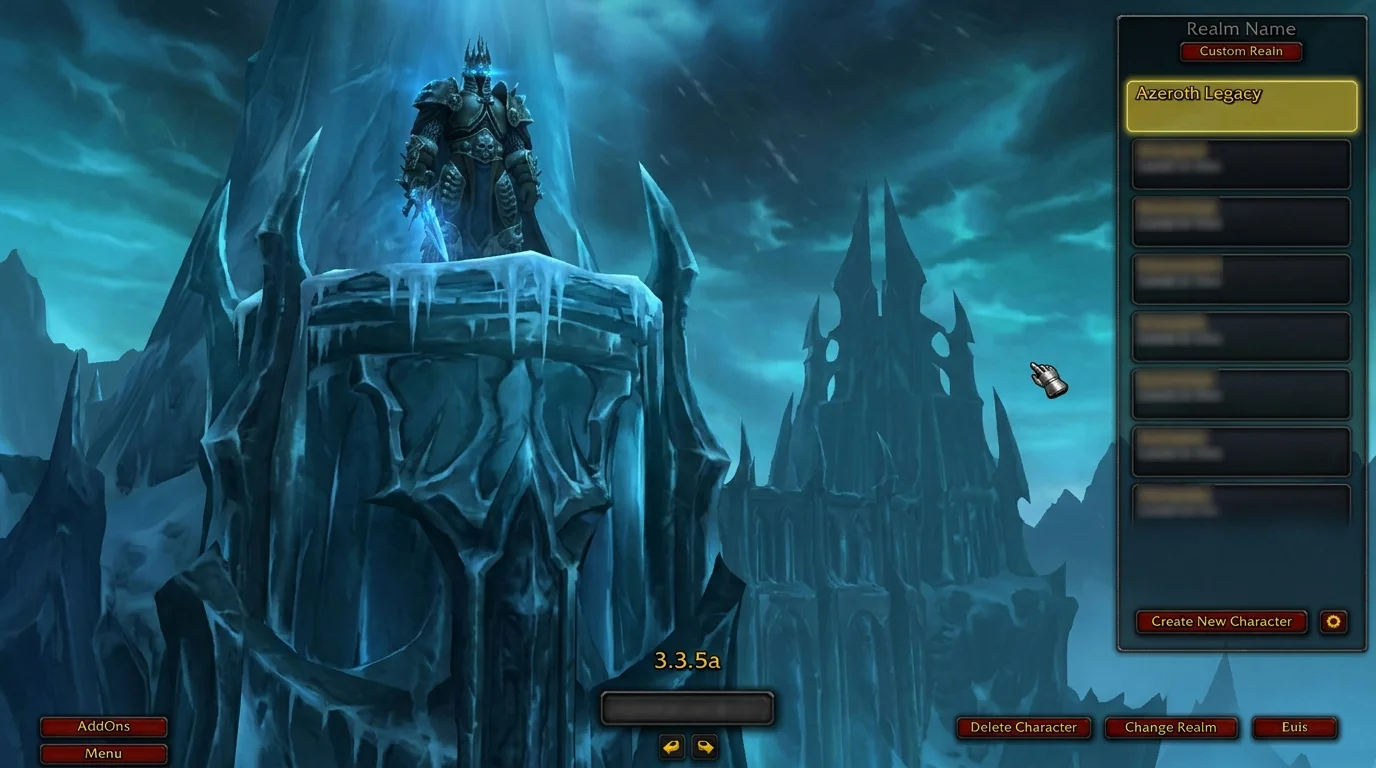
If the realm selection screen appears with Azeroth Legacy in the list, the installation is correct.
Common errors and how to resolve them
"Unable to connect" / "Unable to connect"
- Confirm that the
realmlist.wtfis saved with the correct content - Check that there is no extra space or invisible character at the end of the line
- Temporarily disable antivirus to test — some block WoW connection
The realmlist.wtf was saved but does not work
- Confirm that the file has been saved as
.wtfand not how.wtf.txt - Open Notepad as Administrator and edit again
The game opens but freezes on the loading screen
- Run the
WoW.exeas Administrator (right click → Run as administrator) - Confirm that the client version is 3.3.5a (12340) — this information appears in the bottom left corner of the login screen
Corrupted files error
- Extract the
.zip— extraction may have failed silently - If the problem persists, download using another method (Drive or MEGA instead of torrent, or vice versa)
Final checklist before playing
- [ ] Client extracted into folder without accents or spaces
- [ ]
realmlist.wtfcontains exactlyset realmlist logon.azerothlegacy.com.br - [ ] Account created at azerothlegacy.com.br
- [ ]
WoW.exerun directly (not by Launcher) - [ ] Azeroth Legacy appears in the list of realms
With that out of the way, you're ready to create your character. The next step is to configure the interface and addons before playing.
Posts Recomendados
First login to the server: mandatory settings to get started
On your first login, a few settings change your comfort and performance. See video, interface, keybinds, addons and communication so you redo nothing.
Route of the first 24 hours in Azeroth Legacy: what to do first
Route for your first 24 hours in Azeroth Legacy: don't waste the start on low-return activities. See an objective route to make day one pay off.
Which class suits you in WotLK? Find out before you make the wrong choice
Which class suits you in WotLK? Picking wrong early is the number one reason players quit. Learn what each role demands and what gives you the most fun.
Magtheridon: the pit lord of Hellfire Citadel
Who is Magtheridon: the pit lord who ruled Outland, lost the Black Temple to Illidan and became the blood source for fel orcs in Hellfire Citadel.