
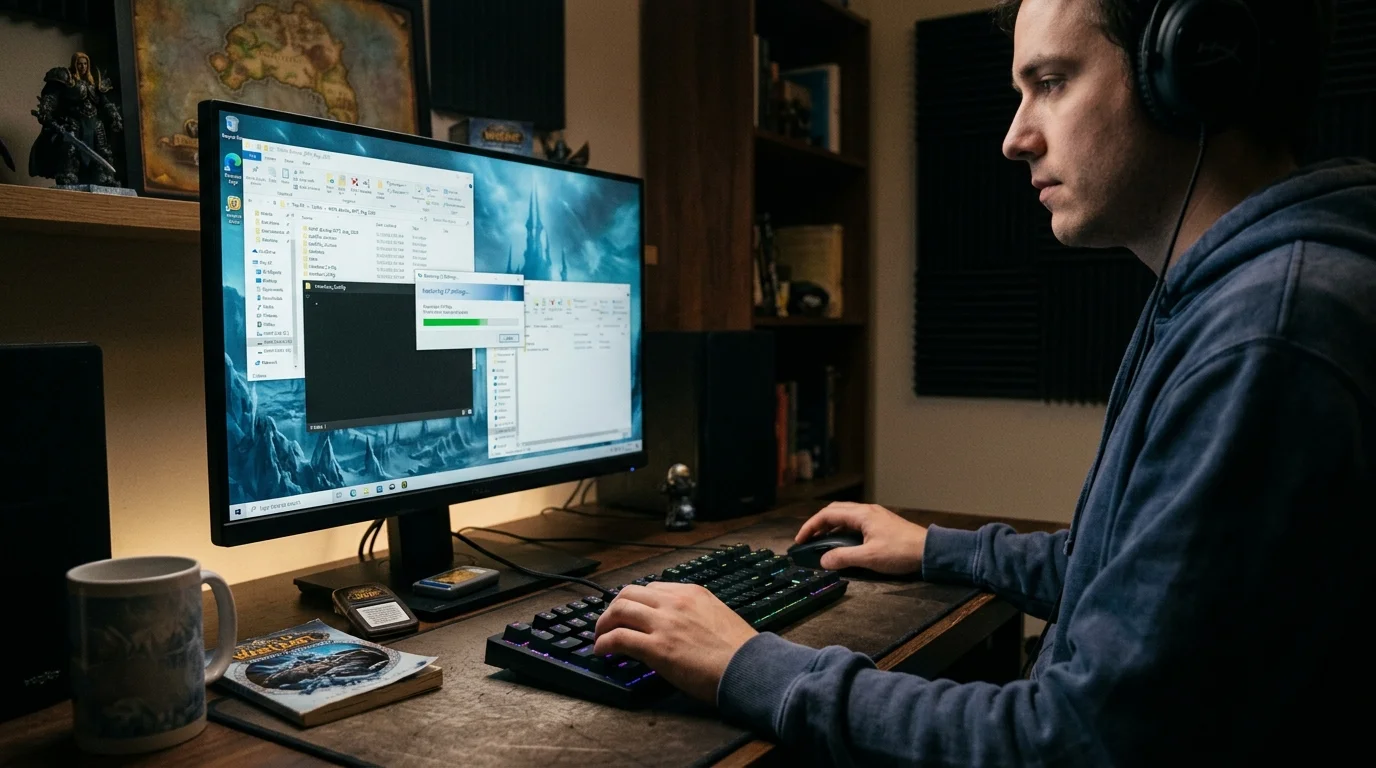
How to save and restore your interface without a headache in WotLK
Interface configuration has value and can be lost in seconds
Hours adjusting frame positions, configuring WeakAuras, defining binds, organizing action bars. All of this lives in local files that disappear if you reinstall the client, change machines or if a buggy addon corrupts the wrong folder.
Backing up the interface in WotLK is simple but most people never do it until they lose everything once.
What needs to be saved
Relevant folder structure
Inside the WotLK installation directory, there are two folders that contain everything you configured:
WTF/ the most important folder. Contains all saved settings: frame position, addon settings, macros, keyboard binds, video settings. Without it, everything returns to default.
Interface/AddOns/ the addon files themselves. It can be rebuilt by downloading the addons again — WTF it can't.
For minimum backup: save only WTF/. And what about your settings.
For full backup: save WTF/ + Interface/AddOns/. You rebuild the complete installation without downloading anything new.
The internal structure of WTF/:
- WTF/Account/[ACCOUNT_NAME]/SavedVariables/ — global addon settings (per account)
- WTF/Account/[ACCOUNT_NAME]/[SERVER]/[CHARACTER]/SavedVariables/ — settings per character
Step by step to backup
Simple backup (only settings)
- Close WoW completely — don't minimize, close
- Navigate to the WotLK installation folder
- Copy the entire WTF/ folder to a safe location (external hard drive, cloud folder, another directory)
- Rename with the date: WTF-backup-2024-03-15/
This preserves all addon settings, frame position, macros and binds.
Complete backup (settings + addons)
- Close WoW completely
- Copy WTF/ to backup location
- Copy Interface/AddOns/ to backup location
- Keep the two folders together in the same backup directory
Step by step to restore
Restoration in the same installation
Situation: you want to go back to a previous backup after an addon broke everything.
- Close WoW completely
- Rename (do not delete) the current WTF/ folder to WTF-corrupt/ — preserves the current state for investigation
- Copy the WTF/ backup to the renamed folder location
- Open WoW and check if the settings are back
If it worked, delete WTF-corrupt/. If it didn't work, you still have the original state.
Restoration in new installation
Situation: you reinstalled the client from scratch and want to recover the settings.
- Install the WotLK client normally
- Open the game once and close — this creates the basic folder structure
- Close WoW completely
- Delete the newly created WTF/ folder
- Copy the WTF/ backup to its place
- If you have a backup of Interface/AddOns/, copy to replace the existing folder
- Open WoW
Restoration on new machine
Situation: you changed computers and want to take everything with you.
- Install the WotLK client on the new machine
- Open the game once and close
- Transfer the backup to the new machine
- Copy WTF/ and Interface/AddOns/ to the installation folder, replacing the existing one
- Open WoW — everything should be as it was
Attention: the installation path does not need to be identical. WoW reads WTF/ relative to its own installation folder, not by absolute path.
When to perform preventive backup
Before any addon update
Badly updated addons can corrupt SavedVariables/. Before updating an addon pack, save WTF/.
Before installing new addon from unknown source
Poorly developed addon can rewrite variables from other addons. Backup before installing.
Before major interface changes
If you are going to rearrange all action bars, reposition all frames, or change addon profiles, save the current state first.
Every 2-4 weeks during regular use
Even without major changes, configurations evolve. A monthly backup ensures you never lose more than a month of adjustments.
Common errors that corrupt the configuration
1. Force close the game (Alt+F4, kill process)
WoW saves SavedVariables/ during normal logout. If you kill the process, the last configuration session is not recorded.
Solution: always use /logout or the normal exit button. Never close the process by force during gameplay.
2. Delete the WTF/ folder thinking it will reset the client
Deleting WTF/ resets everything — not just what you wanted to clear. Macros, binds, video settings and all addons return to zero.
Solution: if you want to reset a specific addon, delete only the .lua file of that addon in WTF/Account/[account]/SavedVariables/, not the entire folder.
3. Addon version conflict with old SavedVariables
Some addon updates change the SavedVariables/ data structure. When updating the addon, it tries to read an old format and may crash or reset settings.
Solution: if an addon resets settings after update, delete the .lua of that specific addon in WTF/Account/[conta]/SavedVariables/ and reconfigure.
4. Wrong account path when restoring
If the account name in the backup is different from the account name in the new installation, the per-character settings will not be loaded.
Solution: check if the Account/[ACCOUNT_NAME]/ folder exactly matches the login name. If the name has changed, rename the folder in the backup before copying.
5. Restore without closing WoW
Overwriting WTF/ files with the game open may cause read/write conflicts.
Solution: Always close WoW completely before any backup or restore operations.
Backup and restore checklist
Backup checklist
Before you start:
- [ ] WoW closed completely (not minimized)
- [ ] Defined the backup destination location
Files to save:
- [ ] WTF/ folder copied to backup
- [ ] Interface/AddOns/ folder copied (if you want a full backup)
- [ ] Named backup with date for easy identification
Verification:
- [ ] Accessible and readable backup at destination
- [ ] Coherent backup size (WTF is usually between 10-100MB depending on addons)
Restoration checklist
Preparation:
- [ ] WoW closed completely
- [ ] New installation opened once and closed (to create folder structure)
- [ ] Localized and accessible backup
Execution:
- [ ] Current WTF/ folder renamed or deleted
- [ ] WTF/ from backup copied to correct place
- [ ] Interface/AddOns/ of the copied backup (if applicable)
- [ ] Account name in backup matches current login name
Verification:
- [ ] Open WoW and present settings
- [ ] Addons loading without error
- [ ] Correct frame position
- [ ] Preserved macros and binds
Minimum recommendation
To never lose interface configuration again:
- save WTF/ before any addon update or major change
- never force-close WoW — use /logout to ensure your settings are saved
- to reset a specific addon, only delete its .lua in SavedVariables/, never the entire WTF/ folder
- When restoring on a new machine, confirm that the account name in the Account/ folder matches the current login
- monthly backup of WTF/ in an external location is sufficient to protect months of configuration
Posts Recomendados
The most common graphics configuration errors in WotLK 3.3.5a
Lag and stutter in WotLK almost always come from poorly tuned graphics settings, not a weak PC. See the most common mistakes and how to fix each one.
Common errors when installing WotLK and how to resolve them
Common WotLK installation errors: can't connect, client closing by itself or an error message? See the most common 3.3.5a client issues and their fixes.
High latency in WotLK: complete checklist to reduce lag
High ping and intermittent lag ruin dungeons, raids and arenas. Use this checklist to separate network, client and route issues and cut latency.
How to make the game lighter on a weak PC in WotLK (without destroying your UI)
Drops in FPS, crashes and delayed input ruin the WotLK experience. Adjust the essentials to gain real performance without making the game ugly or confusing.